In this tutorial, I will show you how to easily display the word count of a WordPress post without the need of a plugin. Admittedly, this is probably not very common to see the word count displayed in a Blog. However, in case you need to display the post´s number of words, this tutorial will show you how.
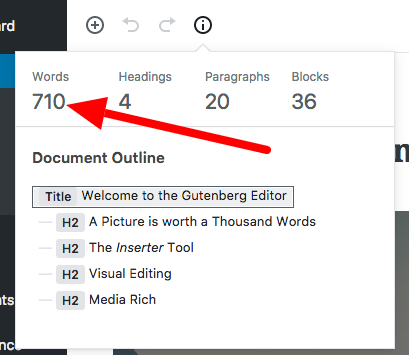
Probably you already have seen some Websites displaying the word count of each post and you wonder how it is done. The picture below shows an example of word count generated for each post on this blog.
What about a plugin? Yes, there are plugins that count and display the word count for each post, but I encourage you to read my previous article about the unnecessarily adding plugins to your theme? Also, you really don´t need a plugin for such a simple task.
Features of My “Post´s Word Count” Code
The Post Word Count code has the following features:
- A ´word´ is defined as a string containing alphabetic characters (unless you specify otherwise in the $char_list variable), which also may contain, but not starting with “’” and “-” characters.
- You can list additional characters (like numbers or other non alphabetical characters) that can be considered as a “word”.
- It strips HTML and PHP tags from the post´s content for a more accurate word count.
- HTML tag attributes are not counted.
- HTML comments are not counted.
Display the Post´s Word Count
Open the functions.php file located in your theme´s folder and add (copy and paste) CODE1.
CODE1:
<?php

function bac_post_word_count()
{
    global $post;
    //Variable: Additional characters which will be considered as a 'word'
    $char_list = ''; /** MODIFY IF YOU LIKE.  Add characters inside the single quotes. **/
    //$char_list = '0123456789'; /** If you want to count numbers as 'words' **/
    //$char_list = '&@'; /** If you want count certain symbols as 'words' **/
    echo str_word_count(strip_tags($post->post_content), 0, $char_list);
}
?>
Imperfections of CODE1
- CODE1 does not validate the HTML. Therefore; partial or broken tags can result in the removal of more text than expected and thus you get an inaccurate word count.
- When the post contains PHP code. The word count gets tricky and can be subject to interpretations …
- When the post contains SyntaxHighlighter shorcode tags. CODE1 counts the shortcode tags.
References:
What´s Next?
Now, to display the number of words of the current post, you need to call the above function (CODE1) within the loop. Add CODE2 below to your theme´s single.php file, where you want the post word count to appear.
CODE2:
<p>Post Word Count: <span class="black">
<?php if(function_exists('bac_post_word_count')) { bac_post_word_count(); }?>
</span></p>
Reference:
This is Where I placed CODE2 for This Blog.
<!-- part of the single.php code removed for brevity. -->
<?php if (have_posts()) : while (have_posts()) : the_post(); ?>

<!-- part of the single.php code removed for brevity. -->

<p class="postmetadata">
Last Updated: <span class="black"><?php the_modified_date('F j, Y'); ?></span><br />
Written by: <?php the_author_posts_link(); ?><br />
<?php the_tags('Tags: ', ', ', '<br />'); ?>
Posted in Category(ies): <?php the_category(', ') ?><br />
Post Word Count: <span class="black"><?php if(function_exists('bac_post_word_count')) { bac_post_word_count(); }?></span>
</p>

<!-- the rest of the single.php code is removed for brevity. -->
Styling the Post´s Word Count
Finally we need to style the Post´s Word Count section with CSS. The following code is what I used for this blog. The code should be added to your theme´s CSS file located in your theme´s folder (usually called style.css). Go ahead and change it to fit your blog design.
.postmetadata {
width:540px;
float:left;
clear: both;
line-height: 1.5em;
color: #777;
background-color: inherit;
}
.postmetadata ul, .postmetadata li {
display: inline;
list-style-type: none;
list-style-image: none;
}
.black {
color: #000;
background-color: inherit;
}